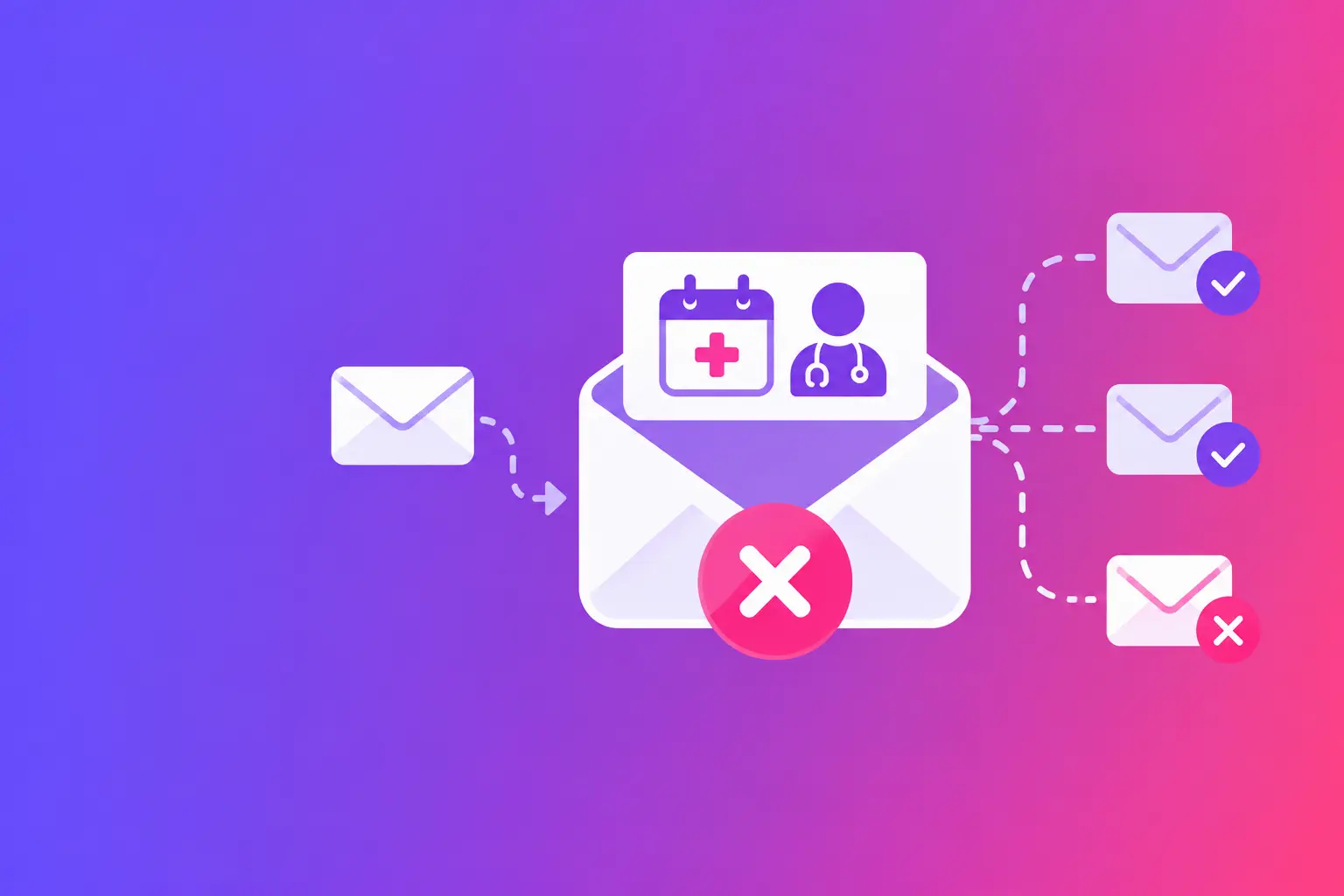
A patient calls at 9:20 a.m. because they never received their 8:00 a.m. appointment reminder. Your scheduling system shows the email as sent. Your front desk assumes the patient overlooked it. But this medical appointment email failure example has a different cause: the recipient’s mail provider rejected the message because the sending domain could not prove it was authorized to send email.
The straight answer is that “sent” does not mean “delivered.” Your scheduling platform may successfully hand a reminder to its outgoing mail server, while the receiving provider later rejects, quarantines, or filters it. For a medical office, that gap can create no-shows, missed follow-up care, frustrated patients, and extra calls for staff.
Medical appointment email failure example
Imagine a practice that sends reminders from appointments@lakeviewclinic.com through a patient scheduling platform. A staff member sees a successful send status and moves on. Several patients using major consumer email providers report that reminders are missing.
The office investigates one failed message and finds a delivery notice stating that the sender was not authenticated. The scheduling platform was permitted to send mail using the clinic’s address, but the clinic had not added the platform to its Sender Policy Framework (SPF) record. SPF is a Domain Name System (DNS) record that identifies which mail servers and services are allowed to send email for your domain.
That missing authorization matters because recipient providers use it as one signal when deciding whether a message is legitimate. The problem is not necessarily the wording of the reminder. It is that the message claims to come from your domain without the technical proof the recipient expects.
The exact fix is usually to update the clinic’s SPF record with the sending platform’s authorized entry. But do not add records blindly. A domain should generally have one SPF record, and adding a second one can create a new failure. Your DNS provider, internal IT contact, or scheduling vendor can confirm the required entry and whether your current record already includes other senders.
What the patient and staff see
The patient sees no reminder, a message in spam, or occasionally a bounced email notification. The front desk sees a patient who missed an appointment and may believe the office did not communicate clearly. Your scheduling system may only show that it submitted the message, not what happened after the recipient’s provider evaluated it.
This is why one complaint is worth checking. A single missed reminder can be an address typo or a full mailbox. Several reports across different patients point more strongly to a domain-level issue, sending-service configuration problem, or a change in your email setup.
Not every email failure has the same cause
A missing appointment email is not automatically an SPF problem. The delivery evidence determines the next step. Start by separating three common outcomes: the recipient server rejects the message, accepts it but sends it to spam, or the message never leaves the system that was supposed to send it.
A rejection normally produces a bounce message or an error in the platform’s sending log. Read the full error, including the recipient provider’s response. Phrases about authentication, policy, sender reputation, or an unknown sending server point to different fixes. A mailbox-full response or invalid address is a patient contact-data issue, not a domain problem.
If the recipient provider accepted the message but placed it in spam, authentication is still worth checking. So are your sending patterns and the legitimacy of the service sending on your behalf. A reminder sent from an established scheduling system can still be questioned if that service is not correctly connected to your domain.
If no message appears in the scheduling platform’s log, the failure may be upstream. Check whether the reminder rule was enabled, whether the appointment had a valid email address, whether the reminder was scheduled before the appointment, and whether the platform recorded an internal error. Delivery diagnostics cannot repair an automation that never triggered.
The domain checks that matter most
Most office managers do not need to become email engineers. You do need to know which records confirm your messages are real and consistent.
SPF is the first check. It should identify every service authorized to send from your domain, including Microsoft 365 or Google Workspace if used, marketing platforms, billing systems, form tools, and appointment software. The trade-off is that every added sender makes the record more complex. Keep an inventory of approved systems so old vendors do not remain authorized after you stop using them.
Next, check DomainKeys Identified Mail (DKIM). DKIM adds a signed identifier to outgoing email. Recipient providers can validate that signature against a public DNS record. In plain language, it helps show that the message was sent by an approved system and was not materially altered in transit. Your scheduling vendor may need to provide the DKIM records and enable signing inside its platform.
Then review Domain-based Message Authentication, Reporting, and Conformance (DMARC). DMARC tells recipient providers how to handle messages that fail authentication checks and allows reporting on activity using your domain. It also checks alignment, meaning the domain a patient sees in the From address should match or appropriately relate to the domain authenticated by SPF or DKIM.
DMARC policy needs care. A monitoring policy can help you see authentication results before moving to a stricter instruction. A stricter policy can reduce misuse of your domain, but it can also disrupt legitimate messages from a forgotten vendor that was never configured correctly. Review your real sending services before changing the policy.
You may also encounter Simple Mail Transfer Protocol (SMTP) errors. SMTP is the standard process mail servers use to transfer email. An SMTP error can identify a connection issue, an authentication rejection, a sending limit, or a recipient-side policy decision. Save the complete error text. The first line alone often leaves out the useful detail.
A practical response when reminders go missing
Start with one known message that failed and one that arrived, if possible. Compare the sender address, sending platform, recipient provider, and time sent. This quickly reveals whether the issue affects all reminders or only a certain workflow.
Ask your scheduling vendor for the message event record and the complete bounce or delivery response. Ask whether the platform sends with its own domain, your domain, or both. That answer changes which SPF and DKIM records you need to inspect.
Then review your DNS records against the services your office actually uses. Confirm that SPF exists only once and includes the current vendors. Confirm that DKIM is enabled for each service that can support it. Confirm that DMARC exists and that its reports go to an address someone monitors.
Do not use a patient’s email complaint as a reason to send repeated reminders to the same address. First determine whether the message was rejected, filtered, or accepted. Repeated sending does not solve a technical authorization problem and can make troubleshooting harder.
For immediate patient communication, your office can use approved contact procedures already in place, such as a phone call or text workflow. Keep the operational response separate from the technical diagnosis. The patient needs a clear next step; your domain needs the right configuration.
When the fix needs outside help
Some fixes are straightforward when you control DNS and have clear instructions from your vendor. Others require coordination. You may need help if you have multiple sending platforms, a former IT provider manages your domain, your SPF record is already complex, or a DMARC change could affect several business systems.
Do not guess at DNS entries. A typo in a DNS record can interrupt legitimate email. If you cannot identify who manages the domain, start with the organization listed on your domain account or ask the person who manages your website and email service. When DNS or mail-server changes are beyond your team, Matano IT can handle hands-on remediation.
Run MailArrive’s free email health check and review the Report Card before the next reminder cycle. It grades the visible domain signals and gives you the exact fixes to investigate first.