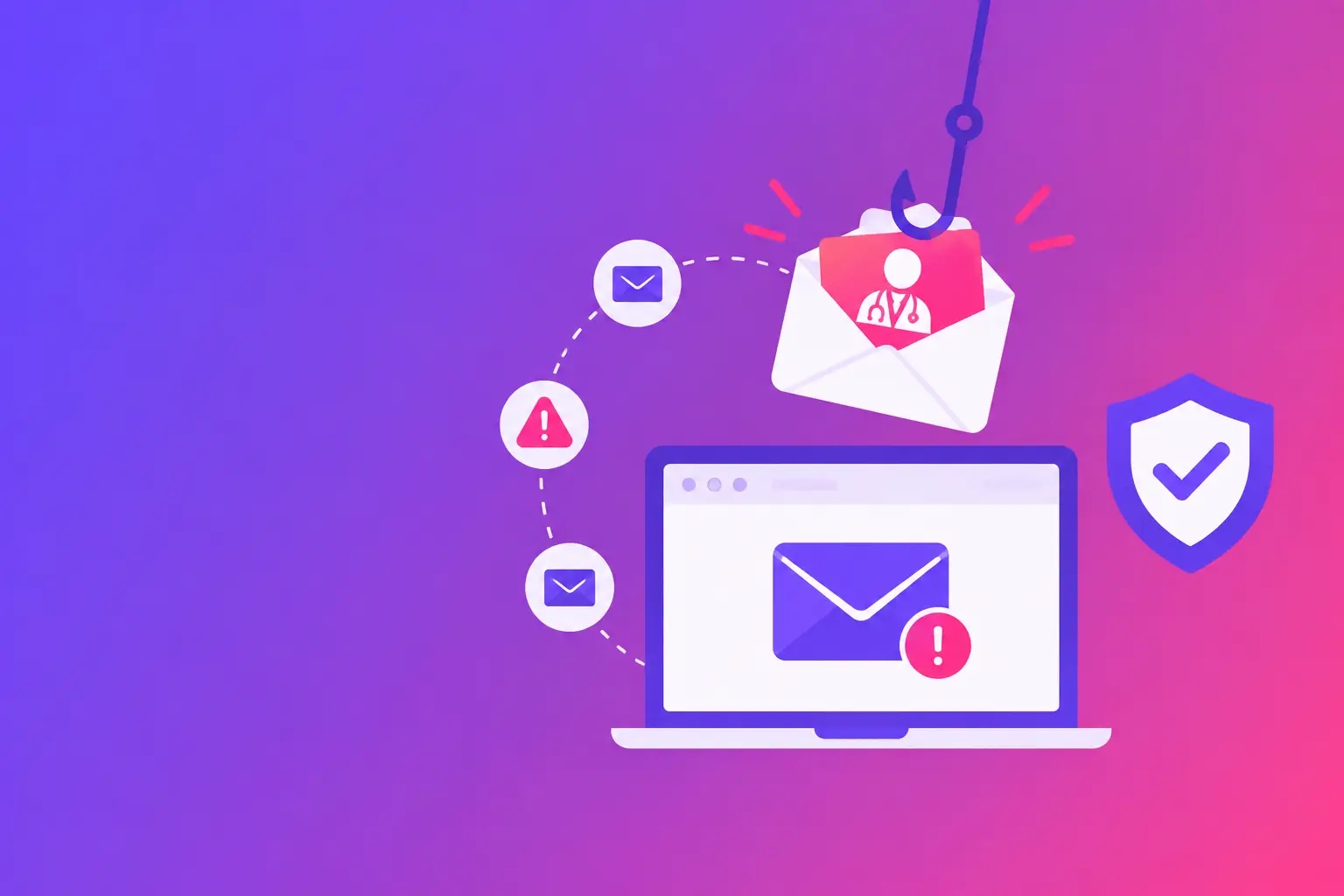
A front-desk employee receives an email that appears to come from a patient portal. The subject says, “Action required: new secure document.” It asks the employee to sign in before the document expires. This medical phishing example works because it targets a normal part of a busy office day: handling records, referrals, appointment changes, and patient questions.
The straight answer: do not trust the name, logo, or urgent wording alone. Check where the message came from, where its link goes, and whether the request makes sense. A few seconds of verification can prevent an account takeover that disrupts patient communication and creates a long cleanup process.
What a medical phishing example looks like
Here is a realistic scenario. A medical office uses a patient communication platform and receives messages from it regularly. A phishing email copies the platform’s colors and sends from an address such as `support@patient-notices.com` instead of the organization’s known domain. The display name may simply say “Patient Portal Support.”
The email claims a patient uploaded an insurance card, completed intake forms, or sent a time-sensitive message. It includes a button labeled “View Document.” The button leads to a sign-in page that resembles the real portal but uses a slightly altered web address.
If an employee enters credentials, the attacker may try those credentials on the actual portal, email account, cloud storage, or other business services. If the account uses the same password elsewhere, one fake message can become a larger access problem.
Not every phishing attempt looks polished. Some have odd grammar, generic greetings, or unexpected attachments. Others are carefully written and use details gathered from public websites or prior breaches. That is why the sender address, link destination, and requested action matter more than spelling alone.
The 7 warning signs to check
1. The sender name and address do not match
A display name is easy to copy. Expand the sender details and read the full email address. Look for extra words, misspellings, swapped letters, or a domain that does not belong to the vendor, hospital, insurer, or patient communication system you use.
A message from `alerts@secure-patientportal.com` may look close enough at a glance. Close is not the same as correct. Use a known phone number or bookmarked vendor site to verify a questionable request.
2. The email creates pressure to act immediately
“Your account will be disabled today” and “Review before the appointment in 10 minutes” are designed to shorten your decision time. Real operational deadlines can happen, so urgency by itself does not prove fraud. It does mean you should verify through a separate channel before clicking.
3. A link points somewhere unexpected
Hover over a link without selecting it. On a computer, your email program should show the destination address. Compare that address with the legitimate domain you expect.
Be cautious with shortened links, misspelled domains, and addresses that begin with a familiar company name but end on an unrelated domain. On a phone, press and hold a link to preview it, or open the legitimate service from its app or saved bookmark instead.
4. The request is unusual for that sender
A patient portal may send a notice that a document is available. It should not normally ask you to send a password by email, buy gift cards, change payment details from an unexpected account, or open a file to “enable secure viewing.”
Context matters. If a billing contact suddenly asks to reroute a payment, confirm the change with a call to a number already in your records. Do not reply to the suspicious message or use a phone number it provides.
5. An attachment does not fit the workflow
An unexpected invoice, referral, imaging report, or fax attachment can be a lure. Files that ask you to enable macros, sign in again, or install software deserve extra caution. A macro is a set of automated instructions embedded in some office documents. It can be used for legitimate tasks, but it is also a common path for malicious activity.
When the document might be real, contact the sender through a known method and ask them to confirm the file name and purpose.
6. The email asks for credentials or a verification code
Passwords and multifactor authentication codes should never be provided in response to an email request. Multifactor authentication is an extra sign-in check, such as a code from an app or text message.
A common attack sends a real-looking sign-in page, then asks for the code after the password. Giving away both can let an attacker sign in while the code is still valid. Stop and contact your IT team or the service provider through verified contact information.
7. The message arrives at an odd time or from a familiar account with a new tone
A compromised vendor or coworker mailbox can send phishing from a real address. In that case, the sender domain may be legitimate, but the message is still unsafe. Watch for a sudden change in writing style, a request outside the sender’s usual role, or an unexpected file and link.
This is the trade-off with sender checks: they are useful, but they are not enough by themselves. You also need to assess whether the request matches the actual business process.
What to do if someone clicked
Clicking a link is not always the same as losing an account. The level of risk depends on what happened next. If the employee only opened a page and did not enter information or download anything, report it promptly and close the page. Your IT provider can decide whether browser, device, or account checks are needed.
If the employee entered a password, change that password immediately from the legitimate service site, not from the email link. End active sessions if the service provides that option, review sign-in activity, and notify whoever manages your email and systems. If a verification code was entered too, treat the incident as more urgent because the attacker may already have accessed the account.
Do not delete the message before reporting it. Preserve it so IT can inspect the sender details, links, and message headers. Headers are the technical routing records attached to an email. They can help show which mail servers handled the message and whether the visible sender matches the underlying source.
If the message went to multiple employees, alert the team in plain language. Tell them not to click, not to reply, and how to reach a known contact if they need to verify a related request. A short internal notice is usually more useful than forwarding the suspicious email around.
Reduce spoofing of your own medical office email
Phishing messages may impersonate your office too. Patients, referral partners, and vendors are more likely to question a suspicious email when your domain has clear authentication records.
Start with three controls. Sender Policy Framework, or SPF, is a DNS record that lists the services allowed to send mail for your domain. DomainKeys Identified Mail, or DKIM, adds a cryptographic signature that helps receiving servers verify a message was authorized and was not altered in transit. Domain-based Message Authentication, Reporting, and Conformance, or DMARC, tells receiving servers what to do when SPF and DKIM checks fail and provides reporting on unauthorized use.
These records do not stop every impersonation attempt. Attackers can use lookalike domains, compromised accounts, or unrelated free email addresses. But correctly configured SPF, DKIM, and DMARC make direct spoofing of your exact domain harder to succeed with and give you visibility into authentication failures.
Configuration requires care. An overly restrictive SPF record can cause legitimate messages from an appointment tool, billing platform, or marketing service to fail authentication. DMARC policies should be introduced after you identify all authorized senders. The exact fix depends on every system that sends email using your domain.
Your office also needs a simple reporting habit. Staff should know where to send suspicious messages, who can verify vendor requests, and what to do after a mistaken click. Technical controls reduce exposure. Clear procedures reduce confusion when a message arrives during a busy day.
When a message feels questionable, do not guess. Use MailArrive Scam Check to verify suspicious emails before your team acts on them.