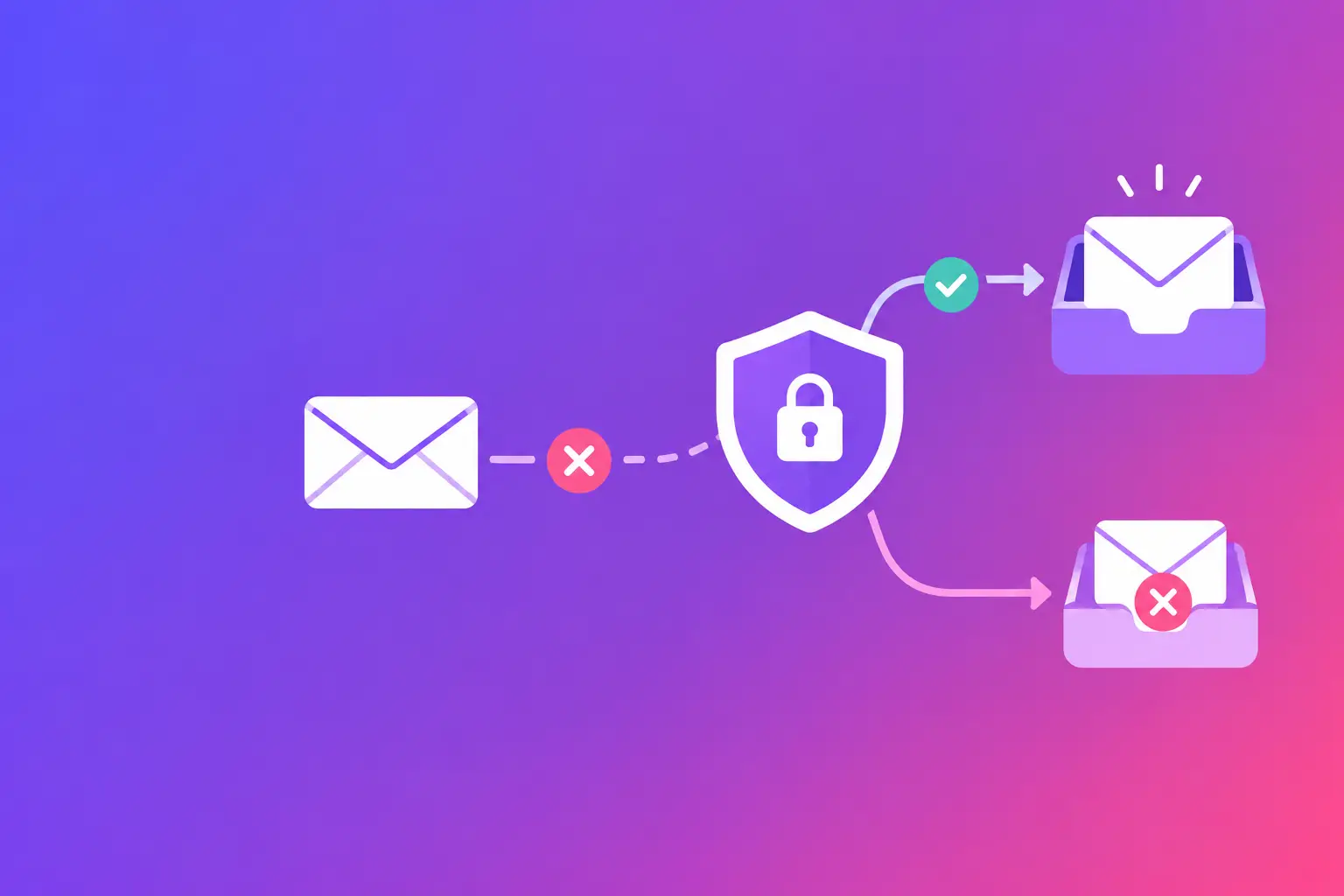
A recipient mail server cannot confirm that a message really came from your business. That is the straight answer to why emails fail authentication. The failure may happen because a required DNS record is missing, a record is written incorrectly, a sending service was never authorized, or the visible From address does not match the domain being authenticated.
For a business, this is more than a technical warning. A proposal may land in spam. An appointment reminder may be filtered. An invoice may be rejected. Authentication does not guarantee inbox placement, but it gives receiving mail systems the proof they need to evaluate your mail as legitimate.
What email authentication actually checks
Email authentication uses public DNS records to answer a basic question: is this sender allowed to send mail for this domain? The three core checks are Sender Policy Framework (SPF), DomainKeys Identified Mail (DKIM), and Domain-based Message Authentication, Reporting, and Conformance (DMARC).
SPF lists the mail servers and services permitted to send for your domain. DKIM adds a digital signature to each message so the recipient can verify that the message was signed by an authorized domain and was not changed in transit. DMARC tells receiving servers how to handle mail that fails SPF or DKIM and requires the authenticated domain to align with the domain shown in the From address.
These systems work together, but they do different jobs. A message can pass DKIM and fail SPF. It can pass both checks and still fail DMARC because the domains do not align. That distinction is where many otherwise sensible troubleshooting efforts go wrong.
Why emails fail authentication most often
Authentication failures usually come from a small set of causes. The exact fix depends on which check failed and which system sent the message.
Your SPF record does not authorize every sender
Many businesses start with one mailbox provider, then add a marketing platform, customer relationship management system, website form tool, accounting system, or help desk. Each may send mail using your domain. If a service is not included in your SPF record, its messages can fail SPF.
The common mistake is adding a second SPF record. A domain must have one SPF record, not one record per platform. Multiple records can produce an SPF PermError, meaning the recipient cannot reliably evaluate the policy. The correct approach is to combine authorized sources into one record.
SPF can also fail because the record exceeds the DNS lookup limit. SPF allows a maximum of 10 DNS lookups during evaluation. Adding service after service without reviewing the full record can push you past that limit. At that point, the fix may require simplifying the record or adjusting how particular systems send mail.
Another complication is email forwarding. A forwarded message may arrive from the forwarding server rather than the original authorized sender, causing SPF to fail. DKIM can often preserve authentication in this scenario, which is one reason you should not treat SPF as the only check that matters.
DKIM is missing, broken, or signing with the wrong domain
DKIM depends on two parts: your sending system adds a signature, and DNS publishes a public key that recipients use to validate it. If the DNS key is missing, copied incorrectly, placed under the wrong selector, or not yet published everywhere, DKIM validation fails.
A selector is simply a label used to identify a specific DKIM key. Your email provider may give you a selector such as `s1` or `mail`. The DNS record must use the exact selector and host name provided. One extra character, a duplicated domain name, or a broken line in a long key can make the record unusable.
DKIM can also fail after an email platform migration. Your old provider may still have a valid DKIM record, while the new provider has not been enabled or its required records were never added. Check the headers of a recent message from each sending source. You need to know which domain signed the message and whether that signature passed.
DMARC fails because the domains do not align
DMARC is the policy layer. It passes when SPF or DKIM passes and aligns with the domain in the visible From address. Alignment means the authenticated domain matches, or is an accepted related subdomain of, the address your recipients see.
For example, a message may show `From: billing@yourcompany.com` while a third-party service signs it as `provider-mail.example`. DKIM may pass for the provider domain, but it does not align with `yourcompany.com`. If SPF also does not align, DMARC fails.
This is common with third-party tools. Some support custom DKIM signing for your domain. Some use a custom return-path domain to align SPF. Some require a different From address or a dedicated subdomain. There is no universal fix. The right answer depends on what that provider supports and how critical it is that its messages use your primary domain.
DNS changes were entered correctly in one place but are not live
Authentication records live in DNS, but businesses do not always manage DNS where they bought the domain. Your registrar, website host, email provider, and DNS host may all be separate. Editing records in the wrong dashboard changes nothing.
Even in the correct dashboard, formatting matters. SPF records must be published as TXT records. DKIM records usually use a selector-based host name and may contain a long public key. DMARC is a TXT record at `_dmarc.yourdomain.com`. Quotation marks, spaces, duplicate records, and automatic domain suffixes can all cause problems.
DNS propagation also takes time based on the record's time to live setting. Do not assume a change failed immediately after saving it. Confirm that the public DNS record now shows the intended value, then test a newly sent message.
How to find the failing check
Start with a message that was rejected, sent to spam, or received a warning. In the message headers, look for an `Authentication-Results` line. It commonly reports results such as `spf=pass`, `dkim=pass`, and `dmarc=pass` or `fail`.
If you see an SPF failure, identify the server or service that sent the message and compare it with your SPF record. If DKIM fails, check the signing domain and selector against the public DKIM record. If DMARC fails, compare the visible From domain with the SPF return-path domain and DKIM signing domain.
Do not rely only on a recipient's bounce message. It may say “authentication failed” without specifying the failed mechanism. The headers and DNS records provide the details needed for an exact fix.
Fix authentication in the right order
Begin with an inventory of every system that sends mail as your business. Include everyday mailbox email, marketing messages, website forms, appointment tools, invoicing software, ticketing systems, and scanners or devices that send alerts. This step catches the sender that is often missing from SPF and DKIM planning.
Next, verify that you have one valid SPF record and that it authorizes the sources that need it. Then enable DKIM for each platform that supports signing with your domain, and publish each required DNS key exactly as instructed. Finally, create or review your DMARC record.
A new DMARC policy does not need to start by asking recipients to quarantine or reject mail. Many organizations begin with monitoring so they can see which services are sending under their domain and find legitimate sources that need configuration. Once authentication is stable, your policy can become stricter if that matches your business needs.
Also review subdomains. A system that sends from `notifications.yourcompany.com` may need its own authentication setup. Treat each sending domain as a separate identity, even when it belongs to the same business.
Authentication failures can signal a security gap
A missing or weak DMARC setup makes it easier for criminals to impersonate your domain in messages sent to customers, vendors, or staff. That does not mean every authentication failure is an attack. Most are configuration issues. Still, the same controls that improve legitimate mail verification also help recipients distinguish your real messages from lookalike abuse.
BIMI, or Brand Indicators for Message Identification, can display a verified brand logo in some inboxes when strict authentication requirements are met. MTA-STS, or Mail Transfer Agent Strict Transport Security, helps protect encrypted delivery between mail servers. TLS-RPT, or Transport Layer Security Reporting, provides reports about problems with that encrypted delivery. These records are useful additions, but they do not replace SPF, DKIM, and DMARC.
Your concrete next step is to run MailArrive's free email health check and review the Report Card. It grades your domain's authentication records, identifies the failed category in plain language, and gives you a clear starting point for the exact fix.