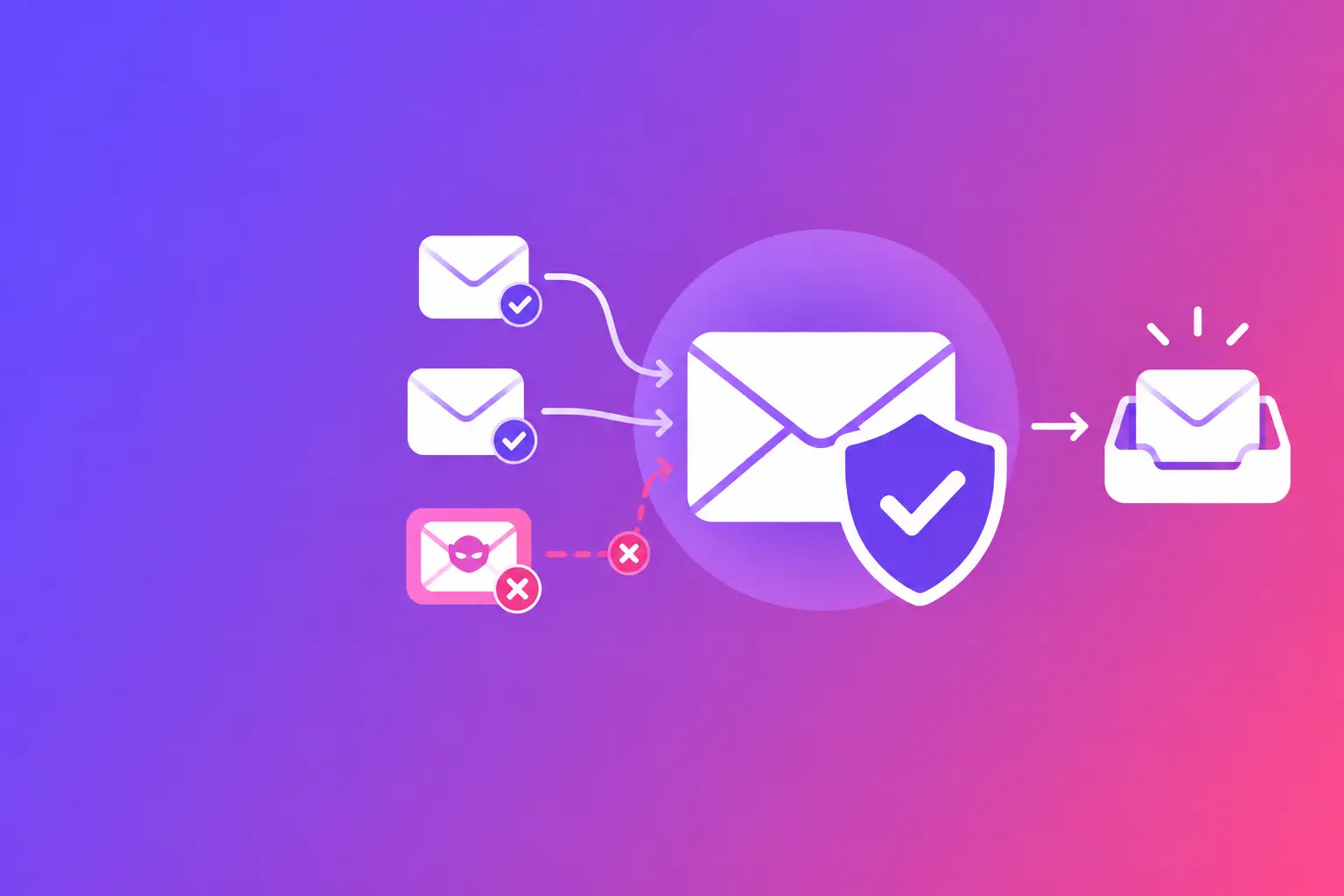
A customer receives an invoice that appears to come from your company, replies to it, and later learns the message was fake. The sender address used your domain. To stop business email spoofing, you need to tell receiving mail systems which messages are truly authorized to use your domain and what to do with the rest.
The straight answer is SPF, DKIM, and DMARC. These three email authentication records work together to make domain impersonation harder, give mailbox providers clear instructions, and show you where your domain is being used. They are not a replacement for employee awareness or payment-verification procedures. They are the technical foundation those procedures need.
What business email spoofing actually is
Email spoofing happens when a criminal sends a message that appears to be from someone else. In a business setting, the attacker may copy your company name, use an executive's display name, or forge an address such as billing@yourdomain.com. Their goal is usually to redirect a payment, steal login credentials, collect sensitive information, or start a fraudulent conversation with a customer.
A convincing display name is not the same as a forged domain. Someone can send from a completely unrelated address while displaying your owner's name. That is harder to prevent at the domain level, but employees and customers can be trained to inspect the actual sender address. When the attacker sends mail claiming to be from your real domain, domain authentication is the exact fix.
This matters beyond security. When fake mail from your domain reaches customers, it damages trust in legitimate invoices, appointment notices, legal updates, and sales messages. It can also make recipients more cautious about every message your team sends.
Start by inventorying every legitimate sender
Most authentication failures happen because a business protects its domain before identifying every system that sends mail for it. Your main mailbox provider is only one sender. Marketing platforms, customer relationship management systems, help desks, accounting tools, website forms, appointment software, copiers, and payroll services may all send messages using your domain.
Make a simple list of each system, the department that owns it, and whether it sends from your primary domain or a subdomain. Include systems used only occasionally. A forgotten event platform or website form can become a delivery problem after you tighten your policy.
This inventory determines which services must be included in your authentication records. Do not add a sending service just because you recognize its name. Confirm that it currently sends mail for your organization and follow that provider's published domain-authentication setup instructions.
Set up SPF, but keep it focused
Sender Policy Framework, or SPF, is a DNS record that identifies the mail servers allowed to send messages for your domain. DNS, or Domain Name System, is the public record system that helps internet services find domain settings.
SPF is useful, but it has limits. It verifies the path a message took, not necessarily the address a recipient sees in the From field. It can also break when a message is forwarded. That is why SPF alone cannot stop business email spoofing.
Your exact SPF task is to publish one SPF record for each sending domain, then list only your real sending sources. Many businesses accidentally create multiple SPF records. Receiving servers can treat that as an error. Others keep adding services until the record becomes too complex to evaluate reliably.
Review the record whenever you replace a mail vendor, change website hosting, or retire an old platform. If a system no longer sends mail for you, remove it. An authorization record should reflect your current business, not every service you have ever tested.
Turn on DKIM for each sending platform
DomainKeys Identified Mail, or DKIM, adds a digital signature to outgoing email. The receiving mail system checks that signature against a public key published in DNS. If the message was changed after it was signed, or if the signature does not match, the check can fail.
Unlike SPF, DKIM generally survives normal forwarding better. It also gives your domain a stronger identity signal when it is correctly aligned with the From address recipients see.
Most legitimate email platforms provide the DKIM records you need. They are often added as CNAME records, which point one DNS name to another, or as TXT records, which store text-based DNS information. Add the records exactly as supplied. A missing character, incorrect hostname, or record placed on the wrong domain can prevent signing from working.
After publishing the record, verify that the platform has activated DKIM and send a test message. Do not assume that adding a DNS record automatically means mail is being signed. This is a common gap, especially for marketing or customer-service tools configured by a different team.
Use DMARC to set the rule and get visibility
Domain-based Message Authentication, Reporting, and Conformance, or DMARC, connects SPF and DKIM to the visible From domain. It tells receiving systems how to handle messages that fail authentication and sends reports about those results.
DMARC works through alignment. In plain language, the domain that passes SPF or DKIM must match, or be appropriately related to, the domain in the From address. This is the part that prevents an attacker from passing a check with their own unrelated domain while pretending to be you.
A DMARC policy has three common stages. A policy of `p=none` asks receivers to monitor failures and send reports without requesting action. `p=quarantine` asks them to treat failing messages cautiously, often by sending them to spam. `p=reject` asks them to refuse failing messages that claim to be from your domain.
Do not jump to reject without reviewing reports. A strict policy can block legitimate mail if a sending platform was missed, a department uses an unapproved tool, or a subdomain was configured incorrectly. Start with monitoring, correct the failures you recognize, then move toward quarantine or reject when your legitimate senders are consistently aligned.
The right pace depends on your organization. A company that sends only through one mailbox provider may move quickly. A medical office with several appointment, billing, and patient communication systems may need a longer review period. The goal is not speed for its own sake. The goal is a policy that protects your domain without interrupting real operations.
Protect the domains people may confuse with yours
Your primary domain is not the only address that deserves attention. Review domains you own for common purposes, such as a separate marketing domain or regional brand domain. Attackers may target an unused domain because nobody is watching it.
For domains that should never send email, publish a restrictive DMARC policy and make sure they have no active sending authorization. This reduces the number of names an attacker can misuse. It also gives your team a cleaner answer when someone asks whether a message from that domain could be legitimate.
You cannot prevent criminals from registering lookalike domains that you do not own. You can reduce their impact by using consistent sender addresses, teaching staff to verify payment-change requests through a known phone number, and warning customers about the channels you actually use for sensitive requests.
Keep authentication from becoming a one-time project
Email authentication needs an owner. Assign responsibility to an internal IT contact, operations leader, or managed provider. That person should review DMARC reports, track new sending systems, and approve domain changes before a department launches a new tool.
Also protect access to your DNS account and email administration console. Use multi-factor authentication, limit administrator access, and remove former employees or vendors promptly. SPF, DKIM, and DMARC protect the identity of your domain in transit. They cannot help if an attacker gains control of the domain settings themselves.
When a suspicious email is reported, check the real sender address, message headers, and authentication results before replying or acting. For payment changes, bank details, password resets, or sensitive document requests, verify through a separate known contact method. That operational step catches threats that use a lookalike address, a compromised vendor mailbox, or a convincing display name.
Know what a successful setup looks like
A working setup is not just three records visible in DNS. Your legitimate mail should show passing SPF or DKIM, with at least one of those checks aligned to the From domain. Your DMARC reports should identify expected sending sources, and your policy should match your confidence in that inventory.
If reports show failures, treat them as a diagnostic signal rather than a reason to panic. First identify whether the source is legitimate. If it is, correct its authentication setup. If it is not, your DMARC policy can help receiving systems handle the impersonation. Keep a record of each decision so future staff understand why a sender was authorized or removed.
Your next step is to run MailArrive's free email health check and review the Report Card. It grades your domain's SPF, DKIM, DMARC, DNS, and related settings in plain language so you can see the priority fixes before changing your email policy.