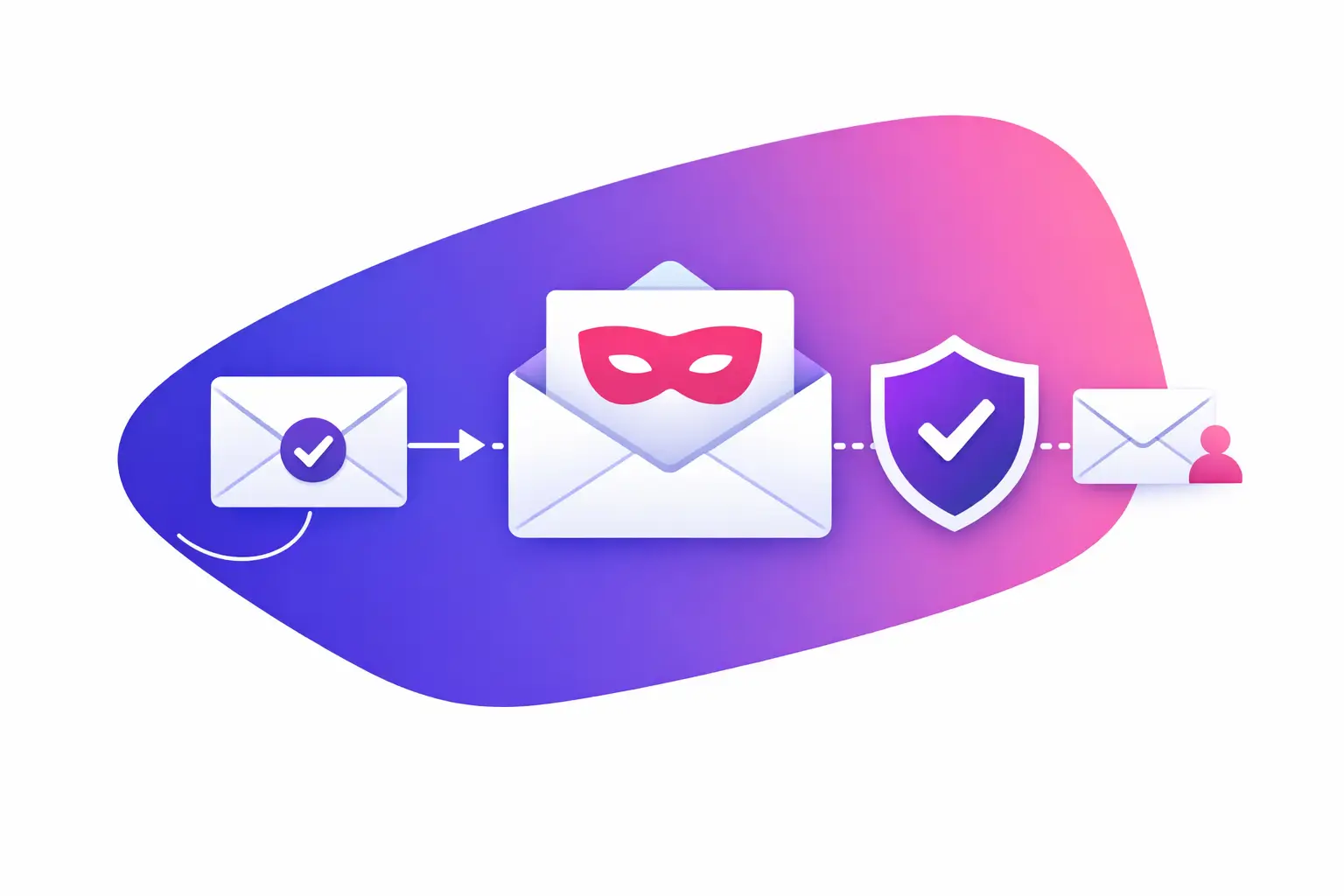
An invoice request from your owner may look routine until you notice one extra letter in the sender’s address. That is how many impersonation attempts work: they borrow a familiar name, create a believable reason to act quickly, and rely on a busy employee to skip one verification step. Learning how to detect email impersonation gives you a practical way to stop those requests before money, credentials, or sensitive client information changes hands.
Email impersonation is not always a message full of obvious errors. A convincing message may use your company logo, copy a real signature, reference a current project, or arrive during a legitimate vendor conversation. The straight answer is this: do not judge a message by its display name or writing style alone. Check who actually sent it, what it asks you to do, and whether the request can be confirmed through a separate channel.
What email impersonation looks like
An impersonator tries to appear to be someone your team already trusts. That could be an executive, a coworker, a vendor, a client, a bank, or even your own company. The goal varies. Some messages seek payment or gift cards. Others ask for payroll records, login credentials, tax forms, client documents, or a change to bank account details.
The most common version is display-name impersonation. Your inbox may show “Jordan Lee” or “Accounts Payable,” while the real email address is unrelated to that person or company. A more sophisticated version uses a look-alike domain, such as replacing a lowercase “l” with an “I,” adding a hyphen, or using a slightly different ending. `company-mail.com` is not the same as `companymail.com`.
Sometimes the sender is real, but their account has been compromised. In that case, the address can be correct and the message can appear inside an existing email thread. That is why identifying impersonation is not only about spotting misspellings. It is about verifying unusual actions.
How to detect email impersonation before you respond
Start with the sender address, not the name that appears at the top of the message. Most email programs let you click or tap the sender name to reveal the full address. Compare the domain, which is the part after the @ symbol, letter by letter with the known address. Do not rely on a quick glance.
Next, read the request as a business process, not as an email. Does your owner normally ask for wire transfers by email? Would a vendor change payment instructions without a phone call? Is a client suddenly asking you to share documents through a new file-sharing site? A message can be technically well written and still violate the normal way your organization works.
Pay close attention to these warning signs:
- A request for money, passwords, payroll details, tax records, gift cards, or client information.
- Pressure to act immediately, keep the request confidential, or bypass an approval process.
- A reply-to address that differs from the visible sender address.
- A link that opens a sign-in page, file-sharing portal, or payment page you did not expect.
- A changed bank account, mailing address, phone number, or payment method.
One warning sign does not prove fraud. A sender may be traveling, using a new address, or handling a genuine emergency. The exact fix is to treat any unusual request involving money, credentials, or confidential data as unverified until you confirm it independently.
Check the reply-to address and links
A reply-to address tells your email program where a response will go. An impersonator may send a message from one address while directing replies to another mailbox. If the visible sender looks legitimate but the reply-to domain is unfamiliar, stop and verify.
Do not click a link simply because it includes a familiar company name. On a desktop computer, hover over it to preview the destination. On a phone, press and hold carefully if your mail app provides a preview. Look for misspelled domains, extra words, shortened addresses, or a destination that does not match the claimed organization.
Even a correct-looking link deserves context. A legitimate vendor may send a secure portal link, but a surprise request to sign in should be confirmed using a known phone number or a bookmarked website. Do not use the phone number or link contained in the suspicious message to verify it.
Treat attachments as a separate decision
An attachment can be dangerous even if the sender’s name is familiar. Be cautious with unexpected invoices, shared documents, password-protected files, and files that ask you to enable editing or macros. A macro is a built-in automation feature in some office documents. It can be useful, but it can also run unwanted code.
If an attachment relates to a real transaction, confirm that the sender intended to send it. Use an established contact method, such as the phone number in your customer relationship system, vendor record, or company directory. A quick call can prevent a costly mistake.
Use message headers when the email is unclear
Message headers are the delivery records attached to an email. They can show the path a message took and whether the sending system passed key authentication checks. Headers are useful when a message claims to come from your organization, a major vendor, or a person whose address looks almost right.
You do not need to read every line. Look for authentication results, usually near labels such as SPF, DKIM, and DMARC.
Sender Policy Framework, or SPF, is a DNS record that lists which mail servers are allowed to send email for a domain. Domain Name System, or DNS, is the public directory that helps systems find domain settings. A failed SPF result can be a warning, although forwarding services can sometimes cause legitimate SPF failures.
DomainKeys Identified Mail, or DKIM, adds a signed record to a message. It helps receiving mail systems verify that the message was authorized by the sending domain and was not altered in transit. A failed DKIM result deserves attention, but it is not by itself proof of an impersonation attempt.
Domain-based Message Authentication, Reporting, and Conformance, or DMARC, checks whether the visible From address aligns with SPF or DKIM and tells receiving systems how the domain owner wants unauthenticated messages handled. If a message claiming to be from a company fails DMARC, that is a strong signal to avoid replying, clicking, or opening attachments until you verify it.
These results need context. A message can pass authentication and still be malicious if a real account was compromised. It can also fail one check for a legitimate technical reason. Headers help you investigate the source, but they do not replace a confirmation process for sensitive requests.
Verify requests outside the email thread
When a message changes payment details, asks for credentials, or creates urgency, verify it using a separate method. Call a known number. Start a new email to an address you already have on file. Message the person through your normal business chat tool. If the request appears to come from someone inside your company, ask them directly rather than replying to the message.
This rule should apply to everyone, including leadership. In fact, executive impersonation works because employees may hesitate to question an urgent request from an owner, attorney, physician, or finance leader. A clear policy removes that pressure: sensitive requests require confirmation, regardless of title.
For payment changes, consider a simple two-person process. One person receives the request, and another verifies it through a known contact channel before any account record or transfer is changed. The extra step can feel slow when a request is real. It is much faster than correcting a misdirected payment.
Reduce the chance that your own domain is impersonated
Your team needs good habits, but your domain also needs the right technical controls. SPF, DKIM, and DMARC help receiving systems distinguish authorized email from messages that merely claim to use your domain. They are not a guarantee that every fraudulent message will be blocked, especially when attackers use look-alike domains or compromised accounts. They do give your domain a clearer, verifiable identity.
Begin by identifying every service that sends email on your behalf. That may include Microsoft 365 or Google Workspace, a marketing platform, appointment software, a billing system, a customer relationship management platform, and a help desk. Each legitimate sender must be included and configured correctly before you move to a stricter DMARC policy.
This is where trade-offs matter. A strict policy can reduce unauthorized use of your domain, but a rushed configuration can affect legitimate automated messages. Review your sending sources, test changes, and use DMARC reports to see what is sending as your domain. If you do not control the DNS records or mail server settings, this is a sensible point to involve IT.
What to do after you spot a suspicious email
Do not reply, click, download, forward it to coworkers as a warning, or use any contact details inside the message. Report it through your email provider’s phishing-report option and send it to your internal IT contact or security owner. If you already entered a password, change it immediately through the real account site and tell IT. If payment or confidential data was involved, escalate through your organization’s incident process without delay.
Keep the original message available for review. Deleting it immediately can remove details your IT team needs, such as headers, addresses, links, and attachment names. Your reporting process should be simple enough that employees will use it instead of making a rushed judgment alone.
When a suspicious message leaves you unsure, use MailArrive Scam Check to verify what you received before you act.