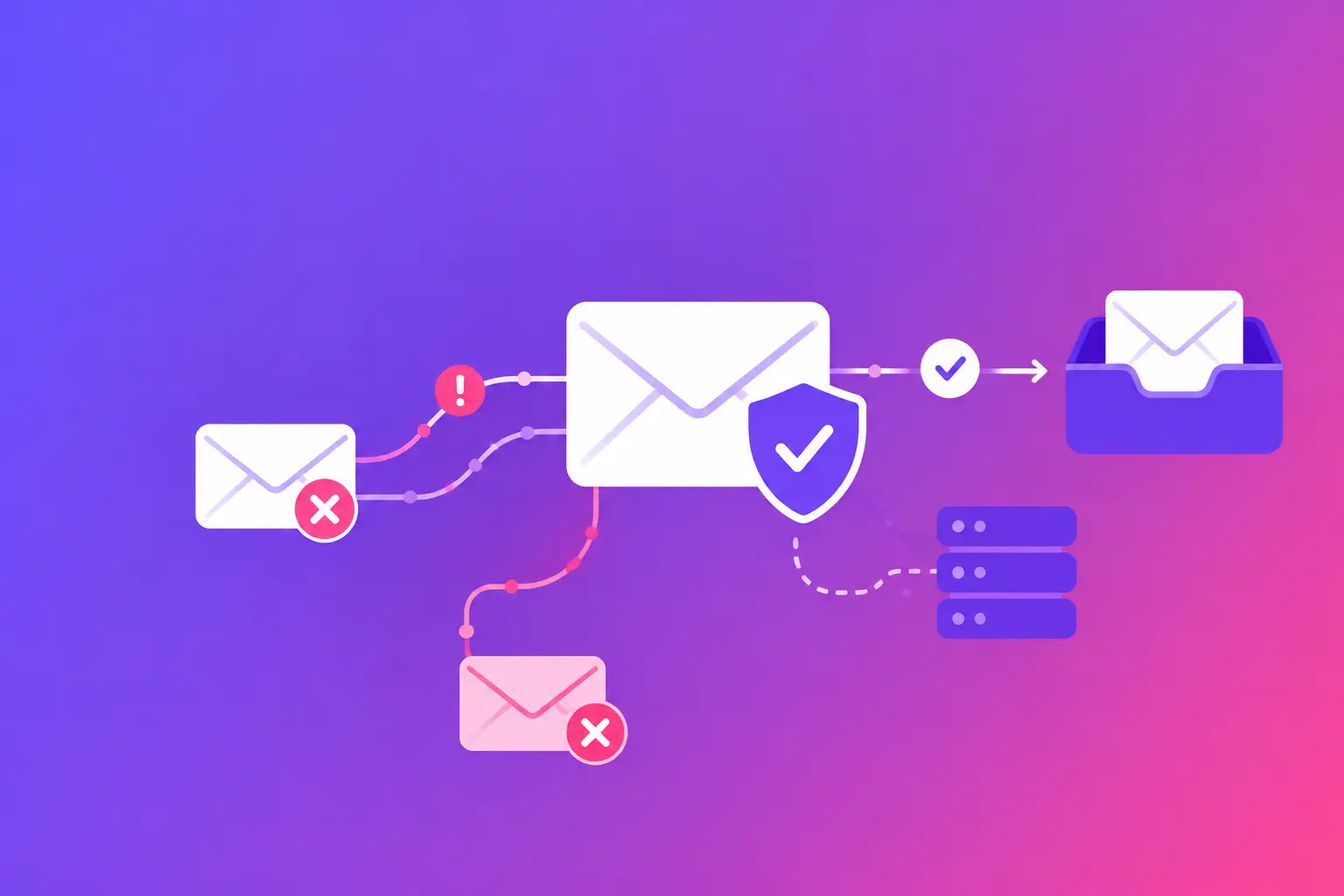
An email bounce is not just a failed message. It is a response from a mail server that usually tells you what happened, where it happened, and whether sending again will help. Knowing how to read SMTP errors lets you separate a one-time delay from a problem that can keep invoices, appointments, sales follow-ups, or client updates from arriving.
SMTP stands for Simple Mail Transfer Protocol. It is the system mail servers use to hand email from one server to another. When that handoff fails, the receiving server sends back an SMTP response. The straight answer is this: start with the three-digit code, then read the server's full text response. You need both.
How to read SMTP errors at a glance
Most SMTP errors begin with a three-digit number. The first digit tells you whether the problem is temporary or permanent.
A 2xx response means the server accepted the message. For example, `250 2.0.0 OK` means the receiving server accepted it. Acceptance does not prove the message reached the inbox, but it confirms the server completed the handoff.
A 4xx response means a temporary failure. The receiving server is saying, in effect, “not now.” Your email system may retry automatically. A temporary error can result from a busy server, a short-term connection limit, or a mailbox that is temporarily unavailable.
A 5xx response means a permanent failure. Retrying without changing something will usually produce the same result. The recipient address may not exist, the recipient's server may reject your domain, or your message may violate a policy.
You may also see an enhanced status code, such as `5.1.1` or `4.7.1`, after the main SMTP code. This adds useful detail. The first number again indicates temporary or permanent status. The remaining numbers point to the category of failure, such as an invalid recipient, a mailbox issue, or a security policy rejection.
Do not rely on the number alone. Different mail systems use slightly different wording and may apply codes differently. The full response from the recipient's server is the best evidence of what to fix.
Find the server response, not just the bounce subject line
A notification that says “delivery failed” is a summary. The useful details are usually lower in the message, in a section labeled Diagnostic-Code, Status, Remote-MTA, or Final-Recipient. If your organization uses a business email platform or an outbound email service, an administrator may also find the same response in delivery logs.
Look for four items:
- The recipient address that failed
- The complete SMTP code and text response
- The server that issued the response
- The date and time of the failed attempt
The issuing server matters. If your own outgoing server generated the error, the fix may involve login credentials, a sending limit, or a local configuration. If the recipient's server generated it, focus on the recipient address, your sending domain, your message, or that server's stated policy.
For example, `550 5.1.1 user unknown` is clear. The receiving server cannot find that mailbox. Check for a typo, an old contact record, or a recipient whose address has changed. Sending again to the same address will not solve it.
By contrast, `451 4.7.1 try again later` means the server deferred the message for a temporary policy or connection reason. Let your system retry first. If the same error continues, investigate the sending pattern, your domain authentication, and whether the receiving server provides more specific wording.
Common SMTP errors and the exact first fix
550 5.1.1: Recipient does not exist
This is one of the most common permanent bounces. The mailbox name is invalid, disabled, or misspelled. Confirm the address with the recipient through another trusted channel, then update your contact record. Do not keep retrying the address.
552 5.2.2: Mailbox is full or over quota
The recipient's mailbox cannot accept more email right now. This can be temporary even when the server uses a 5xx code. The practical response depends on the message. For a routine notice, wait and try later. For a time-sensitive document, contact the recipient another way and ask them to clear space or provide a different address.
421, 450, or 451: Temporary server or connection problem
These codes often mean the recipient server is busy, unavailable, or temporarily limiting connections. Your mail system should retry over time. Do not repeatedly press send manually, because that can create duplicate messages once the server recovers.
If the error persists for more than a normal retry cycle, compare it with other bounces. One affected recipient may have a problem on their side. Many recipients at the same domain may point to a connection, reputation, or authentication problem on yours.
535: Authentication failed
A `535` error commonly appears when an email app, copier, website form, or other device cannot authenticate with its outgoing mail server. This is not a recipient delivery problem. Check the username, password, server name, port, and required encryption settings. If the account uses multi-factor authentication, the device may need a separate app password or a modern sign-in method.
550 or 554 5.7.1: Message rejected for policy or security reasons
This response needs closer reading. It can indicate that the recipient server rejected your sending domain, Internet Protocol (IP) address, message content, or authentication. It may also say that the server requires a valid reverse DNS record, which maps an IP address back to a recognizable mail server name.
Start with the exact text. If it mentions SPF, DKIM, or DMARC, check those records first. SPF, or Sender Policy Framework, identifies the servers allowed to send mail for your domain. DKIM, or DomainKeys Identified Mail, adds a signed identifier that receiving servers can verify. DMARC, or Domain-based Message Authentication, Reporting, and Conformance, tells receiving servers how to handle mail that fails alignment checks for SPF and DKIM.
A policy rejection does not always mean your domain is broadly blocked. It may be one recipient organization's local rule. But if several unrelated recipients return similar 5.7.1 errors, treat it as a domain or sending-server issue and investigate promptly.
Use the pattern to decide what to fix
One bounce and many bounces require different responses. If one address returns `5.1.1`, correct the contact record. If every message from a website form returns `535`, repair the form's outgoing mail settings. If multiple recipient organizations reject mail with authentication-related messages, inspect the Domain Name System (DNS) records that publish SPF, DKIM, and DMARC.
DNS is the public record system that tells other servers where your domain's email is handled and which systems may send for it. Changes to DNS should be made carefully. A record that looks correct but contains an extra service, missing mechanism, or misaligned domain can still cause delivery failures.
Also check whether the error began after a change. A new email platform, website redesign, office device, domain migration, or modified DNS record is often more useful than a vague “messages are bouncing” report. Match the timing of the change to the systems named in the SMTP response.
Avoid the two most common mistakes
First, do not treat every bounce as a reputation problem. Invalid addresses, full mailboxes, and recipient-side outages are ordinary delivery events. Fix what the response actually says.
Second, do not assume a 4xx error can be ignored. A single temporary response may resolve itself. Repeated 4xx errors, especially from several recipients, can expose a configuration or sending-pattern issue that needs attention.
Keep the original bounce or delivery log when you ask an IT person for help. A screenshot of the subject line is rarely enough. The full SMTP response gives them the server name, code, and reason needed to identify the exact fix.
When repeated SMTP errors point to SPF, DKIM, DMARC, DNS, reverse DNS, or mail server configuration, run MailArrive's free email health check and review the Report Card. It grades the domain records behind common rejections in plain language, so you can fix what you control or give Matano IT the evidence needed for hands-on remediation.