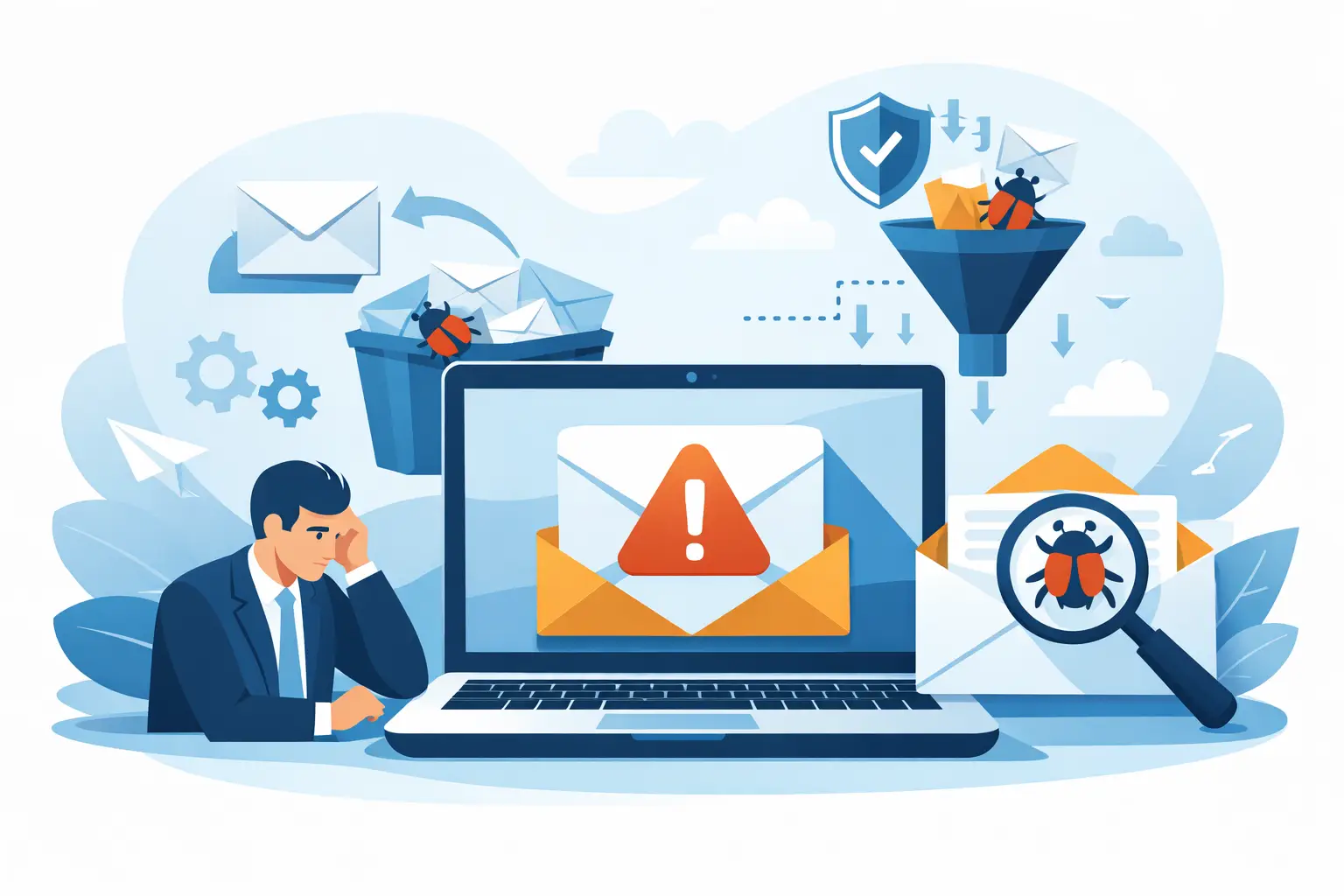
A client is waiting for a contract. A patient needs an appointment reminder. A customer needs an invoice. Your team clicks Send, sees no error, and assumes the message arrived. But if you are asking, “why are business emails going to spam,” the problem is usually not one bad email. It is a trust problem that mailbox providers can measure.
Gmail, Microsoft 365, Yahoo, and other inbox providers evaluate the domain, server, message, and recipient response before deciding where a message belongs. They do not know that your business is legitimate just because your logo is in the signature. You have to prove it through your email setup and sending behavior.
The good news: most spam-placement problems are diagnosable. Start by separating delivery from inbox placement, then fix the highest-impact trust signals first.
Delivery and inbox placement are not the same thing
An email can be successfully delivered to a recipient’s mail system and still land in spam. It can also be placed in Promotions, Updates, Clutter, or another filtered folder. That distinction matters when someone says, “Our email never arrived.”
A hard bounce means the receiving system rejected the message outright. Common reasons include a nonexistent address, a blocked sending server, or a failed policy check. Spam placement means the message was accepted but filtered away from the inbox. Your email platform may report both as successful sends, even when recipients rarely see the messages.
Before changing anything, look for patterns. Does the issue affect one recipient company or nearly everyone? Does it happen with one type of email, such as newsletters or invoices? Are messages from your regular mailbox affected, or only automated messages from your website, CRM, or scheduling software? The answers point to the likely cause.
Why are business emails going to spam? Start with trust
Mailbox providers use many signals, but the biggest ones fall into four categories: authentication, reputation, message alignment, and recipient engagement. A clean-looking email can still go to spam when the underlying domain setup is incomplete or inconsistent.
Your domain is not properly authenticated
Email authentication tells receiving systems which services are allowed to send on your behalf and whether a message was altered along the way. The three core records are SPF, DKIM, and DMARC.
SPF is a DNS record that names the platforms permitted to send mail for your domain. If your staff sends through Microsoft 365 while your marketing tool, invoice system, and website form also send email, all legitimate senders need to be accounted for. A common mistake is publishing multiple SPF records. You should have one SPF record that includes every approved sender.
DKIM adds a signed digital identifier to outgoing email. It helps prove that the message genuinely came through an authorized system and was not changed after it was sent. Each major sending platform should have DKIM enabled, not just your primary mailbox provider.
DMARC tells receiving providers what to do when SPF or DKIM checks fail. It also gives you reports that reveal services sending as your domain. A missing DMARC record does not guarantee spam placement, but it leaves a major trust and anti-spoofing control unfinished. A poorly configured DMARC policy can also cause trouble, so review the reports before moving to a strict enforcement policy.
The exact fix is to inventory every system that sends from your domain, verify SPF and DKIM for each one, and publish a DMARC record that matches your current setup. This is especially important when your website host sends form notifications or a third-party vendor sends appointment reminders under your business name.
Your From address does not align with the actual sender
Authentication works best when the visible From address aligns with the domain that passed SPF or DKIM. For example, a message that appears to come from billing@yourcompany.com but is sent through an unrelated domain can look suspicious, even if the content is legitimate.
This often happens when a business uses a free email address for outbound mail, lets a vendor use its own shared domain, or configures a website form to send “from” the visitor’s address. That last setup is particularly risky. A contact form should send from an address at your domain and use the visitor’s address as Reply-To.
If a vendor cannot support authenticated sending from your domain, ask whether it offers a dedicated sending subdomain, such as notices.yourcompany.com. Separating transactional email from marketing email can protect your primary business domain if one stream develops a reputation problem.
Your sending reputation has weakened
A domain and its sending IP address develop reputations over time. Reputation drops when recipients mark messages as spam, ignore repeated campaigns, unsubscribe in frustration, or when a sender repeatedly targets bad or outdated addresses.
This does not only affect large marketing campaigns. A small business can damage its reputation by importing an old contact list, emailing people who never opted in, or sending a sudden high volume after months of little activity. A compromised mailbox that sends phishing messages can do the same thing quickly.
The fix is not to send more emails to “test” delivery. Pause questionable campaigns, remove invalid and disengaged contacts, and investigate any unusual sending activity. If you have not mailed a large list for a long time, restart gradually with the people most likely to recognize and want your messages.
Also check whether your domain or sending IP appears on a blocklist. A listing is not always permanent or even accurate, but it is a signal worth investigating. Find the source of the listing before requesting removal. Otherwise, the same behavior can put you right back on it.
Content can trigger filters, but it is rarely the whole story
People often blame spam placement on a word like “free,” “urgent,” or “invoice.” Those words can contribute to risk in the wrong context, but content alone is rarely the root cause for a legitimate business with sound authentication and a healthy reputation.
What does create trouble is content that resembles a scam: misleading subject lines, excessive capitalization, image-only messages, shortened links, mismatched display names, or attachments recipients did not expect. An email that says “Urgent action required” from a sender the recipient does not recognize has a high burden of proof.
Make transactional messages specific. An invoice email should identify the account, invoice number, amount, and reason for contact. An appointment reminder should name the practice and appointment details. For sales outreach, use a real employee name, a clear reason for writing, and a simple path to opt out.
Avoid sending passwords, sensitive documents, or surprise attachments when a secure portal or a clearly labeled download process is available. This protects recipients and makes your messages less likely to resemble phishing.
Technical problems outside the message still matter
Email delivery depends on infrastructure that most business owners never see. Your domain needs valid MX records to receive replies, and the server sending your mail should have correct reverse DNS and a valid SMTP identity. Broken TLS configurations, expired certificates, or misconfigured servers can weaken trust or cause failures with certain recipients.
These issues are more likely when a company has changed website hosts, moved email providers, acquired another business, or uses an older on-premises server. They can also appear after a well-meaning DNS update accidentally overwrites an existing record.
A fast domain health check can reveal missing authentication, conflicting DNS records, exposed network issues, and reputation concerns in one place. MailArrive translates those findings into plain language, so your team can see the problem, understand the business impact, and apply the exact fix without guessing.
A practical order for fixing spam placement
Do not start by rewriting every template. First, confirm the systems that send on your behalf and make sure your SPF, DKIM, and DMARC records are correct. Then check whether visible From addresses align with authenticated domains.
Next, review reputation signals. Look at recent campaign volume, bounce rates, spam complaints, old contact lists, unusual mailbox activity, and blocklist status. If the problem is limited to a particular vendor or automated tool, isolate that sender rather than changing your entire email environment.
After the technical foundation is sound, improve the recipient experience. Send expected messages, use recognizable names, make subject lines accurate, and keep your contact data current. For marketing email, honor unsubscribes immediately. For service and operational messages, give recipients enough context to recognize why they are receiving them.
Finally, test with real recipient environments. A message that reaches a Gmail inbox may be filtered by a customer’s Microsoft 365 tenant with stricter policies. Ask a few trusted contacts at different providers where the message lands, and review message headers when possible. That evidence is more useful than a generic “it went to spam” report.
Email filters are designed to be cautious because scams are costly. Your business does not need to become an email infrastructure expert to earn that caution back. It needs a sending identity that is consistent, authenticated, and worthy of the trust your customers already place in your name.