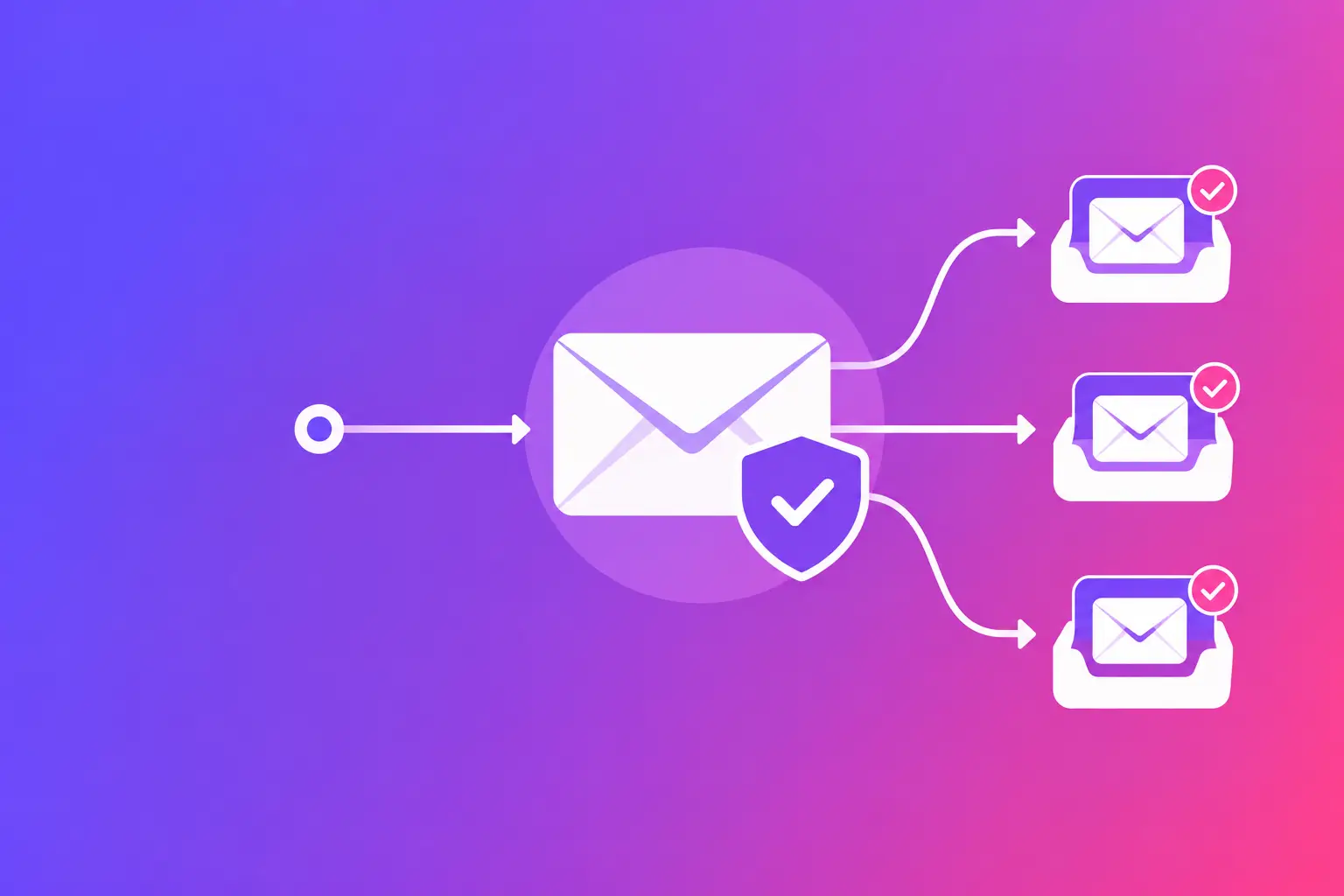
An appointment reminder sent to spam is not a marketing problem. It can mean an empty slot, a missed payment, or a client who thinks your office never responded. This transactional email guide gives you the straight answer: transactional messages need the same careful sending setup as every other business email, even when they are automated and expected.
What counts as transactional email?
Transactional email is a message triggered by a specific customer action, account event, or business process. A password reset, invoice, order receipt, appointment confirmation, document notification, and two-factor login code are common examples.
The message exists to complete a task, not to promote a general offer. That difference matters operationally. A recipient may be waiting for it right now, and a delay or spam-folder placement can stop them from signing in, paying, confirming, or responding.
Some messages sit in a gray area. A receipt that includes a small note about related services is still primarily transactional. An appointment reminder followed by a large promotional banner may be treated more like a marketing message by the recipient and may create confusion for the customer. Keep the purpose clear. If a message is necessary to complete a requested action, lead with that action.
Transactional email guide: start with the sending domain
Your sending domain is the part after the @ symbol in your email address. If receipts come from billing@yourcompany.com, the reputation and technical setup of yourcompany.com affect how receiving mail systems evaluate those messages.
Automated platforms sometimes send from a different subdomain, such as notices@updates.yourcompany.com. That can be a sensible way to separate business functions. It also creates another configuration to verify. A properly configured main domain does not automatically authenticate a new subdomain or a third-party sending service.
Start by listing every system that sends on your behalf. Include your office mail system, website forms, customer relationship management software, scheduling platform, billing tool, and application notifications. For each one, record the visible From address, the return-path or bounce domain if available, and whether it sends through your own mail server or a provider.
This inventory prevents a common problem: an IT team configures authentication for employee mail but misses the system that sends invoices or password resets.
Set up authentication that matches the message
Authentication records are instructions published in Domain Name System (DNS) records. DNS is the public directory that helps mail systems verify who is allowed to send for your domain. The exact fix depends on the system sending the message, but these controls should work together.
Sender Policy Framework (SPF) identifies the servers and services permitted to send mail for a domain. If your billing service sends receipts, its approved sending source needs to be represented correctly in your SPF record. SPF is useful, but it has limits. It can break when a message is forwarded, so do not treat it as your only control.
DomainKeys Identified Mail (DKIM) adds a digital signature to outgoing email. Receiving systems can check that the message was signed by an authorized domain and was not altered after it was sent. Your sending provider typically supplies the DKIM record values, while your DNS administrator publishes them.
Domain-based Message Authentication, Reporting, and Conformance (DMARC) tells receiving systems how to evaluate messages that fail authentication checks. It also requires alignment: the domain the recipient sees in the From address should match, or align with, the domain authenticated by SPF or DKIM. DMARC reports can reveal services sending as your domain that you did not know about.
For transactional email, DKIM and DMARC alignment deserve special attention. A message can technically leave your application yet still look inconsistent to receiving systems if it displays your domain in the From field while the underlying authenticated domain belongs only to a vendor.
Do not publish multiple unrelated SPF records. A domain should have one SPF record that includes all legitimate sending sources. Also, do not move a DMARC policy to strict enforcement until you understand every authorized sender. The right pace depends on how many systems you use and how reliably you can test them.
Make the message easy to recognize and act on
Authentication establishes identity. The message itself should reinforce it. Use a From name your customer recognizes, such as “Northside Dental Appointments” rather than an individual employee name they may not know. Use a monitored reply-to address when a reply could reasonably be expected.
Put the required action near the top. An invoice notice should state the invoice number, amount due, and due date in plain language. A password reset should say why the recipient is receiving it and how long the reset link remains valid. An appointment reminder should include the date, time, location or connection details, and a clear way to contact your office.
Avoid vague subject lines such as “Important notification.” A subject like “Your appointment reminder for Tuesday, May 14” gives the recipient context before they open the message. It also makes your support team’s job easier when someone calls with a question.
The sender identity, subject line, and message purpose should agree. If a customer expects a receipt from your business but receives a generic message from a different domain with an urgent request to click, they may rightly suspect fraud.
Test the delivery path, not just the template
A message can look correct in a preview window and still fail after it leaves your system. Test with real recipient mailboxes that represent the services your customers use. Send a password reset, confirmation, or other safe test transaction. Then check whether it arrives, where it lands, how it renders, and whether reply handling works as expected.
Review the full message headers when troubleshooting. Headers show the route a message took and often reveal whether SPF, DKIM, and DMARC passed or failed. They can also show an unexpected sending domain, a broken signature, or a server that cannot establish a secure connection.
Pay attention to bounces and repeated failures. A hard bounce usually means an address is not usable. Repeatedly sending transactional notices to an invalid address does not solve the underlying problem and can harm the quality of your sending data. Build a process for correcting customer email addresses, documenting delivery failures, and escalating system errors.
Four checks are especially useful before you rely on a new transactional sending system:
- Confirm the visible From domain is one your organization controls and recipients recognize.
- Verify SPF, DKIM, and DMARC are present and aligned for the actual sending service.
- Send real test messages to several mailbox providers and inspect placement, rendering, and headers.
- Review bounce handling, reply handling, and any alerts your sending system generates.
Protect the transport and your domain’s identity
Some controls go beyond basic authentication. Mail Transfer Agent Strict Transport Security (MTA-STS) lets a domain publish rules requiring compatible sending systems to use encrypted, validated connections when delivering mail. Transport Layer Security Reporting (TLS-RPT) provides reports about problems encountered with those encrypted connections.
These controls are not a substitute for SPF, DKIM, or DMARC. They address a different part of the path: how mail servers connect to each other. They are worth considering when email carries sensitive business details, but they require accurate DNS and mail-server configuration. A bad record can create delivery problems rather than prevent them.
Brand Indicators for Message Identification (BIMI) is another optional standard. It can allow supported mailbox providers to display a brand logo after a domain meets specific authentication and validation requirements. Treat it as a later identity project, not a first fix for transactional delivery. Authentication, alignment, accurate sending records, and tested workflows come first.
Keep automated mail from becoming invisible
Transactional systems are often configured once and then forgotten. That is risky because domains, vendors, DNS records, and mail-server settings change. A website redesign may replace a form tool. A billing platform migration may introduce a new sending domain. An employee may update DNS without realizing a record supports customer notifications.
Assign ownership. Someone in operations, IT, or both should know which systems send mail and who can change their settings. Review the setup after a vendor change, a domain change, or reports of missing messages. Keep a simple record of your sending services and their authentication requirements.
If a transactional message is missing, do not assume the recipient ignored it. Check the sending log, recipient address, bounce result, authentication status, and message headers first. That sequence turns a vague complaint into a specific issue you can correct.
Your next step is to run your sending domain through MailArrive’s free email health check and review the Report Card. It grades the records that support business email and explains the exact fix in plain language. If DNS or mail-server changes are beyond your team’s access, Matano IT can handle the remediation.